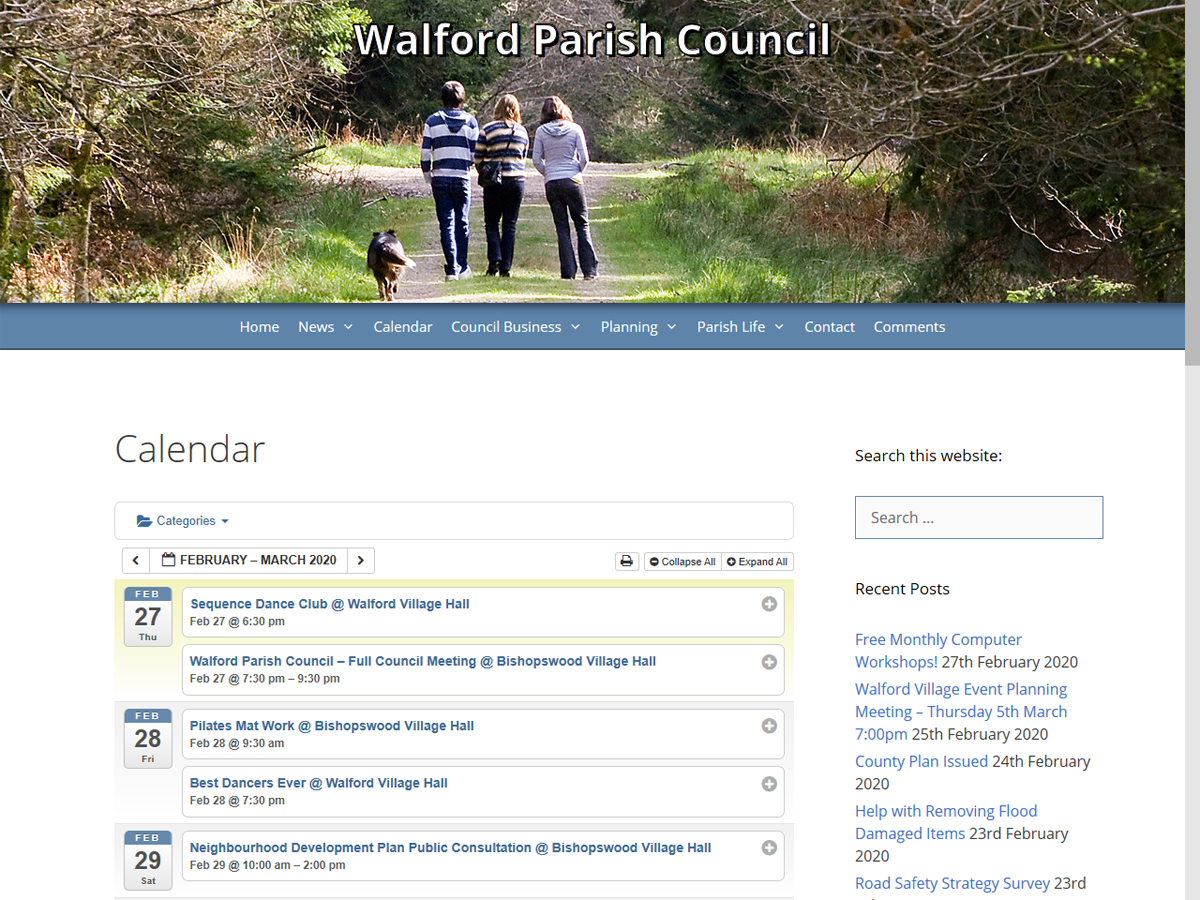
The parish website includes a simple but powerful calendar that is accessible via the CALENDAR menu button at the top of the screen, but is also present on many of the website pages or sidebars (the right hand side of a multi-column screen). The calendar includes meetings and events from across the parish for the year ahead, including both churches, our two village halls and council meetings.
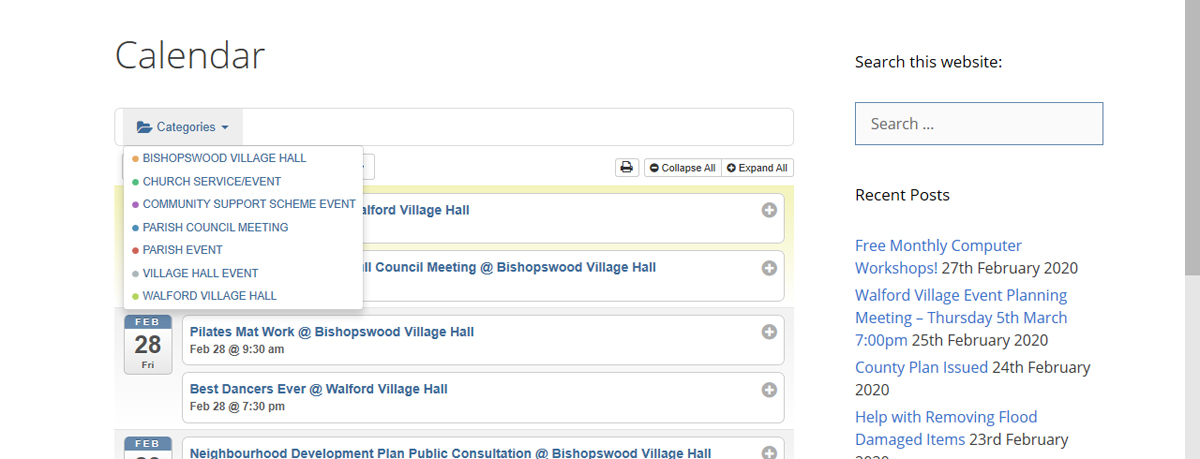
Each group of events is categorised making it easy to show only those that are of interest to you. If, for example you only want to view events for the Churches, then click on the Categories button (top left of the calendar). The categories drop down will appear, then click on those that you wish to display. More than one category can be selected at a time. See below:
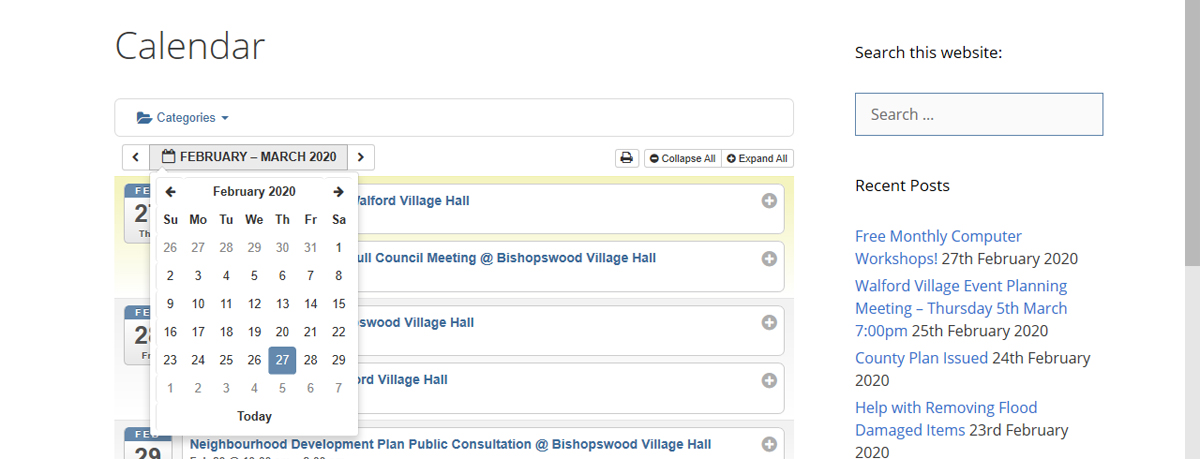
Just below the Category drop down is the Month drop down, where you can select a date to start your display from. The Calendar page shows the next twenty events from the date selected. If a date is not selected it’s the next twenty events from today. See below:
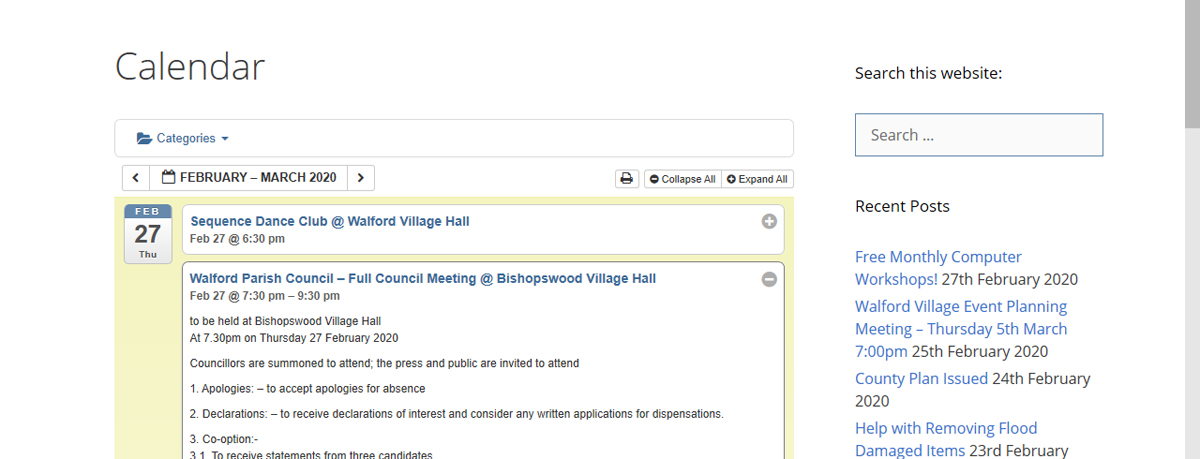
To the right of each event is a round + button. Click this to expand the event and reveal any additional information. Every event on a page can be expanded using the EXPAND ALL button at the top right of the calendar. See below:
The printer button to the top right of the calendar prints just the events on the displayed page. To the bottom right of the calendar is a SUBSCRIBE button. If your own calendar system is set-up to accept it this can be used to pass all events in the parish calendar and events as they are changed directly into your own calendar.
Where the calendar is shown on a side bar or other pages it is normally a sub-set (i.e. one of the above modifications has been pre-selected). A good example of this is the HOME page where the calendar is just for forthcoming council meetings.